Best GPU for Shaders & Volume Rendering
Based on real test data, find the best GPU for shader development
💡 Technical Deep Dive: Why Volume Shader is a GPU Stress Test Powerhouse
🔥 Volume Shader Computational Complexity Analysis
Unlike traditional 2D rendering, Volume Shader requires for each pixel:
- 1.Ray Marching Algorithm
Each ray requires 100-1000+ iterations, calling kernal() function once per iteration
- 2.Volume Data Sampling
1024³ texture = 1,073,741,824 voxels; 4096³ texture = 68,719,476,736 voxels; each sample needs trilinear interpolation
- 3.Lighting Calculation
Scattering, absorption, shadows; reflection vector calculation
- 4.Math Operation Intensity
Heavy trig/inverse trig: atan(), acos(), sin(); power ops: pow(x, 8.0); vector ops: dot(), normalize(), length()
🔥 Computation Load Estimation:
Total Compute = Resolution × Iterations Per Pixel × Compute Per Iteration
4K Resolution (3840×2160) × 500 iterations × ~100 FLOPs/iteration
≈ 4.1 TFLOPs/frame @ 60 FPS ≈ 246 TFLOPs/second
→ This is why Volume Shader is a GPU killer
🏆 VolumeShader.org: Professional GPU Testing Platform
Our Tools
- • Volume Shader → Basic volume rendering test
- • Volume Shader BM → Advanced test with config panel
- • Mass Volume Shader BM → Multi-instance stress test
Why We're Professional
- ✅ Real workloads - not synthetic benchmarks
- ✅ Configurable test intensity - modify kernal function
- ✅ Multi-instance stress testing - 1-999 instances
- ✅ Real-time FPS feedback - precise frame rate monitoring
- ✅ Cross-platform support - all devices covered
What You Get Here
- 🎯 Test your current GPU → Know your baseline before upgrading
- 🎯 Compare different GPUs → Mass Volume Shader BM multi-instance data
- 🎯 Learn Volume Rendering → Editable shader code, real-time results
- 🎯 Verify hardware specs → Is your GDDR7 GPU really faster than GDDR6?
💡 Recommended workflow: 1. Test your current GPU on VolumeShader.org → 2. Record FPS and runnable instances → 3. Check our recommended GPUs with real data → 4. Make an informed purchase
📦 Recommended GPUs

🔶 RX 9060 XT
ASUS Dual Radeon™ RX 9060 XT 16GB GDDR6 Graphics Card (PCIe 5.0, HDMI 2.1b, DisplayPort 2.1a, 2.5-Slot Design, Axial-tech Fan Design, 0dB Technology, and More)

🌟 RTX 5070
ASUS The SFF-Ready Prime GeForce RTX™ 5070 12GB GDDR7 Graphics Card (PCIe® 5.0, 12GB GDDR7, HDMI®/DP 2.1, 2.5-Slot, Axial-tech Fans, Dual BIOS)
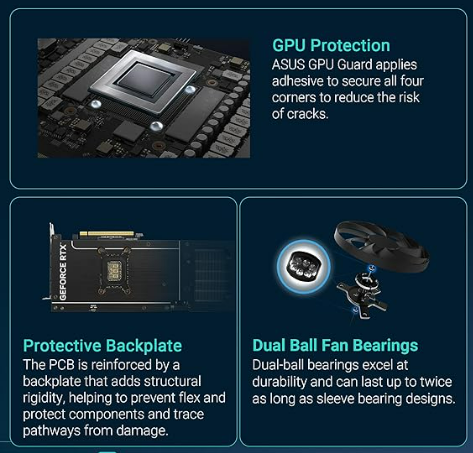
💎 RTX 5070 Ti
ASUS The SFF-Ready Prime GeForce RTX™ 5070 Ti OC Edition 16GB GDDR7 Graphics Card (PCIe® 5.0, 16GB GDDR7, HDMI®/DP 2.1, 2.5-Slot, Axial-tech Fans, Dual BIOS)
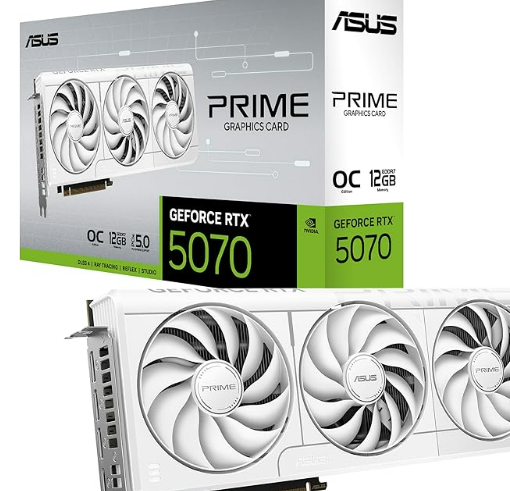
🌟 RTX 5070 White
ASUS The SFF-Ready Prime GeForce RTX™ 5070 12GB GDDR7 White OC Edition Graphics Card (PCIe® 5.0, 12GB GDDR7, HDMI®/DP 2.1, 2.5-Slot, Axial-tech Fans, Dual BIOS)
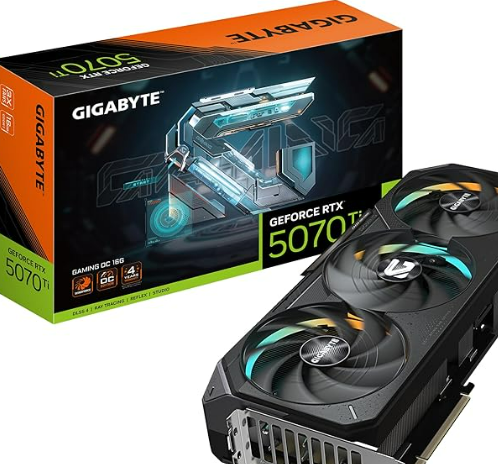
💎 RTX 5070 Ti GIGABYTE
GIGABYTE GeForce RTX 5070 Ti Gaming OC 16G Graphics Card, 16GB 256-bit GDDR7, PCIe 5.0, WINDFORCE Cooling System, GV-N507TGAMING OC-16GD Video Card

🏆 RTX 5080
GIGABYTE AORUS GeForce RTX 5080 Master ICE 16G Graphics Card, WINDFORCE Cooling System, 16GB 256-bit GDDR7, GV-N5080AORUSM ICE-16GD Video Card
As an Amazon Associate, I earn from qualifying purchases.
🛒 Buying Guide: How to Choose the Best GPU for You?
💰 Choose by Budget
| Budget | Recommended GPU | Best For |
|---|---|---|
| $550-650 | RTX 5070 | Advanced learning, gaming, personal projects |
| $650-800 | RTX 5070 Ti (GIGABYTE) | Indie dev, game studios, best value ⭐ |
| $650-800 | RX 9060 XT | AMD users, Linux dev, need large VRAM |
| $900+ | RTX 5080 | Pro studios, GPU render farms, no compromises |
🎯 Choose by Use Case
Learning Volume Shader Development:
→ RTX 5070 (12GB sufficient, GDDR7 entry, best value)
Commercial Projects / Indie Games:
→ RTX 5070 Ti GIGABYTE (16GB, 8,960 CUDA, highest sales)
Professional Studios / GPU Render Farms:
→ RTX 5080 (10,752 CUDA, uncompromised performance)
Linux Development / AMD Platform:
→ RX 9060 XT (16GB large VRAM, ROCm support)
🔄 Same Chip Comparison: Which One?
RTX 5070 Two Versions:
- • Standard (1K+/mo): Best value, mainstream choice
- • White OC (500+/mo): Aesthetics, white themed builds
RTX 5070 Ti Two Brands:
- • ASUS (1K+/mo): SFF-Ready, compact case choice
- • GIGABYTE (2K+/mo) ⭐: WINDFORCE cooling, highest sales
💡 Recommendation: Prioritize cooling and sales → GIGABYTE; Compact case → ASUS
⚡ Compatibility Checklist (Before Buying)
□ PSU Power:
- • RTX 5080: 700W+ recommended
- • RTX 5070 Ti: 650W+ recommended
- • RTX 5070 / RX 9060 XT: 550W+ recommended
□ PCIe Slot: PCIe 4.0/5.0 x16 (backward compatible)
□ Case Space: 2.5-Slot thickness (~50mm)
□ CPU Bottleneck Check:
- • RTX 5080 recommends i7/Ryzen 7 or above
- • RTX 5070 Ti recommends i5/Ryzen 5 or above
- • RTX 5070 recommends i5/Ryzen 5 or higher
□ Display Output: HDMI 2.1 / DisplayPort 2.1
🔍 Test First, Upgrade Later (Avoid Blind Spending)
Test your current GPU on VolumeShader.org:
Decide based on test results:
| Current Performance | Upgrade To |
|---|---|
| < 15 FPS @ 1080p | RTX 5070 |
| 15-30 FPS @ 1080p | RTX 5070 Ti (GIGABYTE) |
| 30-60 FPS @ 1080p | Depends on needs, consider RTX 5080 for 4K |
| 60+ FPS @ 1080p | No upgrade needed, unless for 4K |
💻 Complete High-Performance PC Configuration Recommendations
GPU is the core of Volume Shader rendering, but a high-performance PC needs other components to work together. If you've configured a high-performance GPU but performance is below expectations, check these components:
🖥️ CPU Bottleneck Check
Recommend Intel i7/i9 or AMD Ryzen 7/9 or above. CPU handles scene initialization, data preprocessing; too weak will hold back GPU performance.
Symptoms: Low GPU utilization but FPS won't go up
🧠 RAM Bottleneck Check
Minimum 32GB, recommend 64GB. Large volume data (8192³+) needs lots of system memory as buffer.
Symptoms: Stuttering when loading large textures, system memory usage near 100%
💾 SSD Bottleneck Check
Recommend NVMe SSD. Volume texture files are typically several GB; fast loading needs high read/write speeds.
Symptoms: Slow texture loading, scene switching stutters
⚡ PSU Stability Check
RTX 5080 needs 700W+, RTX 5070 Ti needs 650W+. Recommend 20% headroom for stability.
Symptoms: Frequent crashes, blue screens, reboots under high load
🔍 Quick Diagnostic Steps:
- Open Task Manager / Performance Monitor, observe component utilization
- Run VolumeShader.org test, record GPU utilization
- If GPU utilization < 90%: Possible CPU or RAM bottleneck
- If GPU utilization 100% but low FPS: GPU is maxed out, consider upgrade
- If system memory usage > 90%: Need to add more RAM
❓ Frequently Asked Questions
Q: Can integrated graphics run Volume Shader?
A: Yes, but with limited performance. Intel Iris Xe or AMD integrated graphics can run basic Volume Shader tests - start with /volume-shader. Mass Volume Shader BM may only run 1-3 instances.
Q: 12GB vs 16GB VRAM - what's the difference?
A: For Volume Shader BM: 12GB is sufficient for 2048³-4096³ volume data; 16GB advantage is multi-instance rendering (50+ instances). For learning/single project: 12GB enough; for Mass Volume Shader BM: 16GB recommended.
Q: Does CUDA core count really matter?
A: Critically, especially for multi-instance Volume Shader rendering: RTX 5080 (10,752 CUDA) ≈ 100+ instances @ 60 FPS; RTX 5070 Ti (8,960 CUDA) ≈ 70+ instances @ 60 FPS; RTX 5070 (6,144 CUDA) ≈ 45+ instances @ 60 FPS. More cores = stronger parallel rendering.
Q: GDDR6 vs GDDR7 - what's the difference?
A: Significant impact on Volume Shader: GDDR6 ~320-500 GB/s bandwidth; GDDR7 ~700-1000 GB/s bandwidth. Volume rendering is texture sampling intensive. Real-world: RTX 5070 (GDDR7) vs RTX 4070 (GDDR6X) shows 40-60% FPS improvement.
Q: Is upgrading from RTX 4070 to 5070 worth it?
A: Yes, if you're doing volume rendering: GDDR7 bandwidth ~2x boost; Blackwell architecture optimizes ray marching; Real-world FPS boost 30-50%; Large data stuttering reduced 80%. Highly recommended if budget allows.
Q: How to choose between RTX 5070 Ti brands?
A: Consider case size and cooling: ASUS SFF-Ready for compact/ITX cases; GIGABYTE Gaming OC for standard cases with better cooling and highest sales. Similar performance, main difference is cooling and aesthetics.